Multiple GPUs in Blender: When and How to Use Them
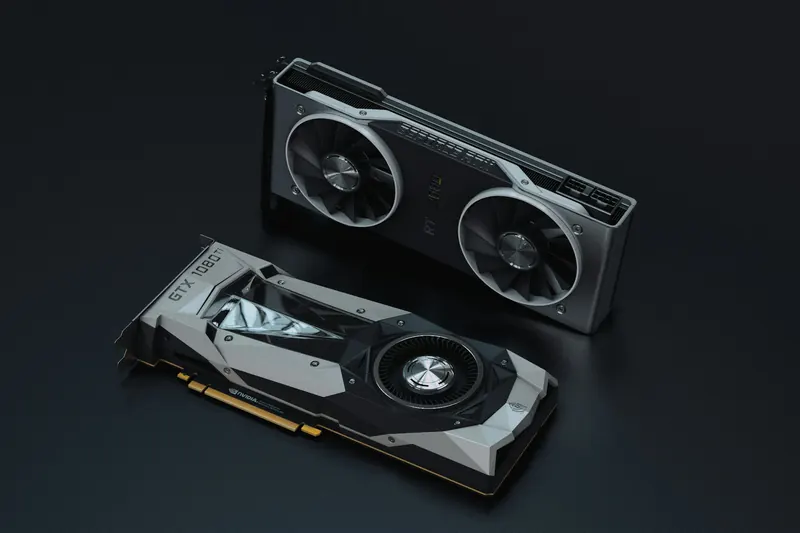
In this guide
Yes, Blender can use multiple GPUs. Whether you should depends on what you render. For one large image, several cards can work together. For an animation, giving each card different frames is often worth testing first.
This guide is about Cycles. EEVEE does not support several GPUs working on one render in the same way. See Blender’s EEVEE limitations.
Choose the setup that matches your render
There are two ways to put multiple GPUs to work:
| You need to finish… | Try this first |
|---|---|
| One still image, or just a few remaining frames | Let several GPUs render each frame together. |
| An animation with plenty of frames | Run a separate Blender instance on each GPU, rendering different frames. |
Enabling two GPUs and clicking Render Animation does not automatically split the animation between two independent instances. Both cards work on the current frame together.
Separate instances can keep more of the computer busy: one GPU can render while the CPU prepares another frame. They also share CPU, system memory, and storage, so too many instances can slow things down. This is the tradeoff Blender’s developers describe.
Expect a speedup, not a perfect multiplier
When several GPUs share one frame, the speedup depends on the scene. Extra cards help most when the frame spends a long time calculating light and shading. They help less when much of the wait is preparation, loading, or saving. Blender’s Cycles scheduling notes explain the tradeoff.
Two similar GPUs can give a strong speedup in one Blender instance. Larger setups can also scale well, though gains may diminish as more cards are added. There is no fixed two-GPU cutoff; results depend on the scene, settings, and GPU combination. Blender’s developers discuss these scaling limits.
One Blender instance per GPU can get close to linear speedup for an animation. Two equally fast GPUs rendering different frames can finish about twice as many frames per hour. Each individual frame still takes roughly as long; you finish more of them at once. This is the scaling Blender’s developers describe.
That assumes enough frames to keep both GPUs busy, evenly distributed work, and enough CPU power, memory, and storage bandwidth for both instances. Long renders with little scene setup make it easier to approach that result.
Check memory before speed
Each independent GPU normally needs its own copy of the scene. If you combine a 24 GB card with an 8 GB card, the smaller card may struggle with a scene that fits comfortably on the larger one. Blender explains this in its GPU memory FAQ.
There are exceptions: compatible NVLink setups can use Blender’s Distribute Memory Across Devices setting. Some backends can also fall back to system memory, with a performance cost. Neither is a reason to assume that any two cards will combine their VRAM.
Separate Blender instances need system RAM for their scene copies, too. If two instances exhaust it, try fewer instances or a smaller scene.
Set up your GPUs in Blender
For several GPUs rendering one frame
- Set the render engine to Cycles.
- Open Preferences → System → Cycles Render Devices.
- Choose a supported backend and check the GPUs you want to use.
- In Render Properties, set Device → GPU Compute.
- Render a test frame and check that the intended GPUs are active.
NVIDIA uses CUDA or OptiX, AMD uses HIP, Intel uses oneAPI, and supported Apple hardware uses Metal. Support depends on your hardware and Blender version; check the GPU setup guide. Start with the CPU unchecked, then test whether adding it helps.
For different GPUs rendering different frames
Open two Blender instances with the same saved project. Select only GPU A in the first and GPU B in the second, with Cycles → GPU Compute enabled in both. Recheck the device selections after loading the project.
Give them nonoverlapping ranges, such as 1–120 and 121–240. Render to a PNG or OpenEXR image sequence with distinct frame filenames, so neither instance overwrites the other’s work.
Bake stateful simulations first and make the caches available to both instances. Check GPU usage and memory during a short test before starting the full animation.
For easier job management, here are two options to explore. We haven’t personally tried these tools or setups; the descriptions below are based on their documentation.
- B-Renderon: A paid desktop interface for background Blender jobs, with frame ranges and device selection per job. It supports parallel jobs on different GPUs where supported.
- Blender’s command line with a launcher script: A DIY option for starting separate instances with different frame ranges. You’ll need to configure GPU assignment and error handling yourself.
Is a second GPU worth buying?
For most everyday Blender workstations, start with one capable GPU that fits your largest scenes. It is simpler to power and cool, and a second GPU does not speed up modeling or CPU simulations in proportion to rendering. Puget’s Blender hardware guide explains how these workloads differ.
A second card becomes more interesting if you already own a suitable GPU, render frequently, and have room, power, cooling, and enough system RAM for another. Include those upgrades when comparing the price with one stronger card.
Use Blender Open Data to shortlist GPUs, comparing the same Blender version. Adding two individual benchmark scores gives an ideal estimate, not a measured two-card result.
Before spending, try the scene improvements in our guide to rendering faster in Blender. Then choose the hardware that delivers a worthwhile improvement on your renders. If the gain is small or untested, one stronger card is the simpler choice.
Explore our Blender GPU catalogue to compare your options. If you need extra rendering capacity, Renderjuice’s Blender render farm can take the rendering off your workstation.
Cover photo by Nana Dua on Unsplash, used under the Unsplash License.